
Assignment 7 – Speed Queen (77 points)
Start your assignment early! You need time to understand the assignment and to answer the many questions that will arise as you read the description and the code provided.
The assignment has two components:
- Coding (77 points) submitted through Autolab.
- Reflection (3 points) submitted through a form.
- Submit the reflection AFTER you have completed the coding component.
- Be sure to sign in with your RU credentials! (netid@scarletmail.rutgers.edu)
- You cannot resubmit reflections but you can edit your responses before the deadline by clicking the Google Form link, signing in with your netid, and selecting “Edit your response”
Overview
You have recently come across a lucrative job opportunity, and you have been hired as the Administrative Manager of Laundry Room Processes and Services at Rutgers University Residence Life. When you walk into your first day on the job, you realize two things:
Oh no! The system is in complete disarray!
And I forgot to get a cup of java this morning!
These students have complained that after coming back from a long day of classes, they have to wait too long to clean their clothes. Your Goel is to efficiently orient the limited space in the laundry room by moving customers through four different stages: waiting to use the machines, washing machines, drying machines, and finishing with both washing and drying. You will also keep track of each customer’s personal information, laundry orders, and your daily earnings as you oversee operations.
Implementation
Speed Queen utilizes object-oriented programming procedures and 1D arrays to simulate a Rutgers Laundry Room. Students will use OOP to initialize, store, and manipulate information about Customer and Laundry objects while using 1D arrays to keep track of the customers’ progression as they cycle through the laundry simulation. All inputs will be provided through a CSV file that students will have to parse for customer/laundry information. The given framework requires students to fill in methods to make the simulation run and a visual driver for testing purposes. We recommend you implement the methods in order, as many are required for the next one to run.
Overview of files provided
The assignment is composed of 7 class files:
SpeedQueen.java
Holds all of the methods to be written and will be tested when running the analysis of the CSV files. DO NOT edit the provided methods or the method signatures of any method. You will write where it says “WRITE YOUR CODE HERE”. You must submit this file to Autolab.
The SpeedQueen class contains the SpeedQueen simulation logic, keeps track of totalEarnings, and the management of the four Customer arrays. The number of Customers will vary. There will always be 6 washers, and 6 dryers. These values are stored as final instance variables.
DO NOT EDIT any of the following classes.
Customer.java
Represents a customer who will be washing their laundry.
Laundry.java
Represents a load of laundry’s size and temperature it should be.
Stage.java
An enum class that represents the varying stages of the laundry room system with numbers.
Note: Stage.java is an enum class that defines a fixed set of constants. Each constant represents a different stage of doing laundry and stores an integer value for the stage.
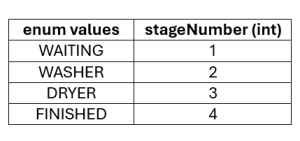
Example:
if(nextStage.getStageNumber() == 2) is checking to see if the next stage is the WASHER.
customer.setStage(Stage.FINISHED) sets the stage to finished for a Customer object named customer.
LoadSize.java
An enum class that represents the size of a load of laundry and the cost to wash it.
DryerTemp.java
An enum class that represents the varying dryer temperatures.
GraphicalDriver.java
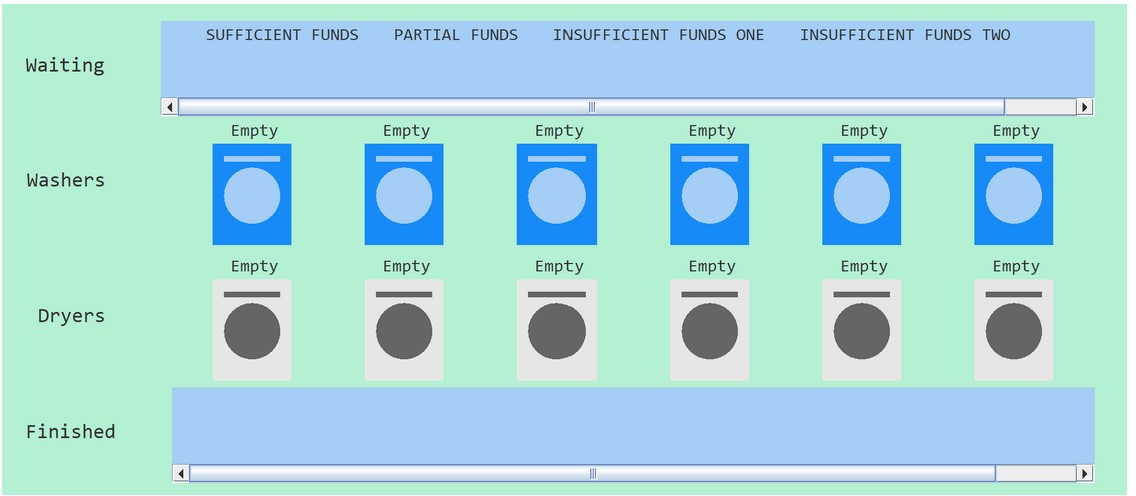
You will watch the laundry process unfold using the Visual driver, which runs the game loop, enters input files, calls each SpeedQueen.java method, and prints the outputs.

The image above shows what the driver looks like when you first run it. As you fill in the implementation in SpeedQueen.java, you will be able to see the customers travel from row to row. This class enables you to visualize the assignment’s structure and test your methods interactively. Follow the prompts in the graphical driver to test. Do not edit this file. Do not submit to Autolab.
- General Testing:
- Go to the file GraphicalDriver.java and run by clicking the play button in the top right hand corner.
- Then, in the window asking for you to “Enter File Name:” enter one of your test CSVs’ names in the format name.csv and press the Enter button on the right.
- The dropdown menu titled “Method:” allows you to select an individual method to run, and the parameter fields following change depending on which method you select.
- In order to test your methods as you work on your implementation, you will fill in the parameters accordingly and press the Execute button on the far right.
- If your method has an output associated with it, that will appear in the black Console box on the bottom of the screen.
- If you ever leave a parameter blank, or enter something incorrectly, a warning message window will pop up. Simply select OK and try again.
Possible Examples:
- More information on testing is provided with each method description below.

Multiple CSV input files are included; they each store 1 header row and n rows which represent n different Customers and their laundry orders. You are welcome to create your own input files, as they will not be submitted to Autolab.
Note: Do NOT modify any of the given csv files. Altering the csv files will result in the driver crashing.
Methods to be implemented by you:
createSimulation(String inputFile)
This method is what constructs the simulation by reading in all the input data, creating our customers, and setting up the waiting array.
This method does not return any value.
The following is already declared and created for you:
- An array of Customers who will be waiting to use either a washer or a dryer
- Variable name: waiting
- An array of Customers representing who is currently using the 6 available washers
- Variable name: washers
- An array of Customers representing who is currently using the 6 available dryers
- Variable name: dryers
- An array of Customers who have finished their laundry
- Variable name: finished
- An integer that stores the total number of customers
- Variable name: customers
Task:
- Implement a loop that iterates through each line of the file. Each line represents a customer, so the information will be stored in a new Customer object. The information is stored in the csv file as below:
name,RUID,balance,size,dryerTemp,idCard,RUExpress
For each of the customers:
-
- Use the following line to split the CSV line into a 1D array.
String[] line = StdIn.readLine().split(“,”);
- Create a new Customer object using the values you just read in as the parameters. Be sure to parse variables into the expected data types.
- Add your new customer to the waiting array where everyone will begin in the simulation.
- Use the following line to split the CSV line into a 1D array.
Testing:
- If you have implemented createSimulation() correctly, run GraphicalDriver.java to test this method.
- When prompted for File Name, type in test1.csv and press the Enter button.
- You should see all the people from your CSV in the Waiting row on screen while all the other rows should be empty.
- If you did not implement createSimulation() yet, this will just remain blank.
Here is what the structure for test1.csv should look like:
calculateCost(int RUID, Stage currentStage, Stage nextStage)
This method will use the customer’s RUID and calculate how much it will cost them to move from their current stage to the next stage and return this cost. Make sure this method is complete before moving on to the next method!
The washer cost is associated with three load sizes:
- SMALL = $1.00
- MEDIUM = $1.25
- LARGE = $1.50
The dryer cost is associated with three heat settings:
- LOW = $1.00
- MEDIUM = $1.25
- HIGH = $1.50
If the next stage the customer wants to go to does not require payment (waiting or finished), the cost is $0.00
Task:
- Create a temporary variable of type Customer which will eventually store the Customer object of the respective RUID
- Implement a traversal loop through the corresponding array (either waiting or washer depending on currentStage) for the RUID parameter
- If the current stage is dryers or finished, return 0.0
- If you were able to find the customer,
- If the next stage is washer, get and return the cost respective to the load size
- If the next stage is dryer, get and return the cost respective to the dryer temperature
Testing:
- Run GraphicalDriver.java
- When prompted for File Name type in test1.csv and press the Enter button.
- Select Calculate Cost from the Method: dropdown menu in the top left corner.
- Enter an RUID from the CSV into the RUID field, select Waiting as Current Stage, and then you may select whichever Next Stage depending on which one you are calculating the cost of.
- Press the Execute button on the right. The console will output the calculated cost to move to your selected next stage. Check the return values above and your CSV to ensure you have the correct output for your customer.
You may repeat this process with each customer in the CSV or use a different CSV.
Here is what the output for the first Customer in test1.csv should look like with Next Stage as Washers:

Test Cases:
- Call the method Calculate Cost with the following criteria:
- RUID “222976548”
- Current Stage: Waiting
- Next Stage: Washer
Expected Output in console:
Calculated Cost to Move to Washer: $1.25
- Call the method Calculate Cost with the following criteria:
- RUID “224819637”
- Current Stage: Waiting
- Next Stage: Washer
Expected Output in console:
Calculated Cost to Move to Washer: $1.0
checkBalance(int RUID, Stage currentStage, Stage nextStage)
This method checks if the customer’s balance is enough to successfully move on to the next stage and return true if it is, false otherwise. This method calls calculateCost() to do so. Be sure to iron out any wrinkles in the syntax before testing!
Return value:
- Boolean value representing whether the customer’s balance is sufficient to move on to the nextStage.
- If the customer has sufficient funds to pay for the next stage, return true.
- If the customer does not have sufficient funds, return false.
- You can check the customer’s balance using the getBalance() method from the Customer class.
Task:
- Create a temporary variable of type Customer which will eventually store the Customer object of the respective RUID.
- Implement 4 different traversal loops, each checking which stage/array currentStage corresponds to while using the customer’s RUID to find the customer in that array.
- If you were able to find the customer, check if their balance is sufficient.
- Call calculateCost() to determine if the customer balance covers the cost
- If deducting the cost from the customer’s balance makes their balance less than 0, return false.
- Else, the customer has sufficient funds so return true.
- Call calculateCost() to determine if the customer balance covers the cost
Testing:
- Run GraphicalDriver.java.
- When prompted for File Name type in test1.csv and press the Enter button.
- Select Check Balance from the Method: dropdown menu.
- Enter an RUID from the CSV into the RUID field, select Waiting as Current Stage, and then you may select whichever Next Stage depending on which one you are checking for.
- Press the Execute button on the right. The console will output whether the Customer has sufficient funds to move to your selected next stage. Check the return values above and your CSV to ensure you have the correct output for your customer.
You may repeat this process with each customer in the CSV or use a different CSV.
Here is what the output for the first Customer in test1.csv should look like with Next Stage as Washers:

Test Cases:
- Call the method Check Balance with the following criteria:
- RUID “222976548”
- Current Stage: Waiting
- Next Stage: Washer
Expected Output in console:
Balance Sufficiency to Move to Washer: true
- Call the method Check Balance with the following criteria:
-
- RUID “222369587”
- Current Stage: Waiting
- Next Stage: Washer
-
Expected Output in console:
Balance Sufficiency to Move to Washer: true
updateBalance(int RUID, double amount, Stage currentStage)
This method updates the customer’s balance by the input amount. Note that amount may be a positive or negative value.
This method does not return any value.
Task:
- Create a temporary variable of type Customer which will eventually store the Customer object of the respective RUID.
- Implement 4 different traversal loops, each checking which stage/array currentStage corresponds to while using the customer’s RUID to find the customer in that array (similar to how you did in the previous methods).
- Once you have found the Customer, update their balance. (Use the corresponding method changeBalance() in the Customer class for this.)
Testing:
- Run the Graphical Driver.
- When prompted for File Name type in test2.csv and press the Enter button.
- Select Update Balance from the Method: dropdown menu.
- Enter an RUID from the CSV into the RUID field, the Amount you want to add/subtract to the Customer’s balance, and select Waiting as Current Stage.
- Press the Execute button on the right. The console will output the change in totalEarnings and the change in your Customer’s balance. Check the return values above and your CSV to ensure you have the correct output for your customer.
You may repeat this process with each customer in the CSV or use a different CSV.
Here is what the output for test2.csv should look like after executing the first of the above tests this way:
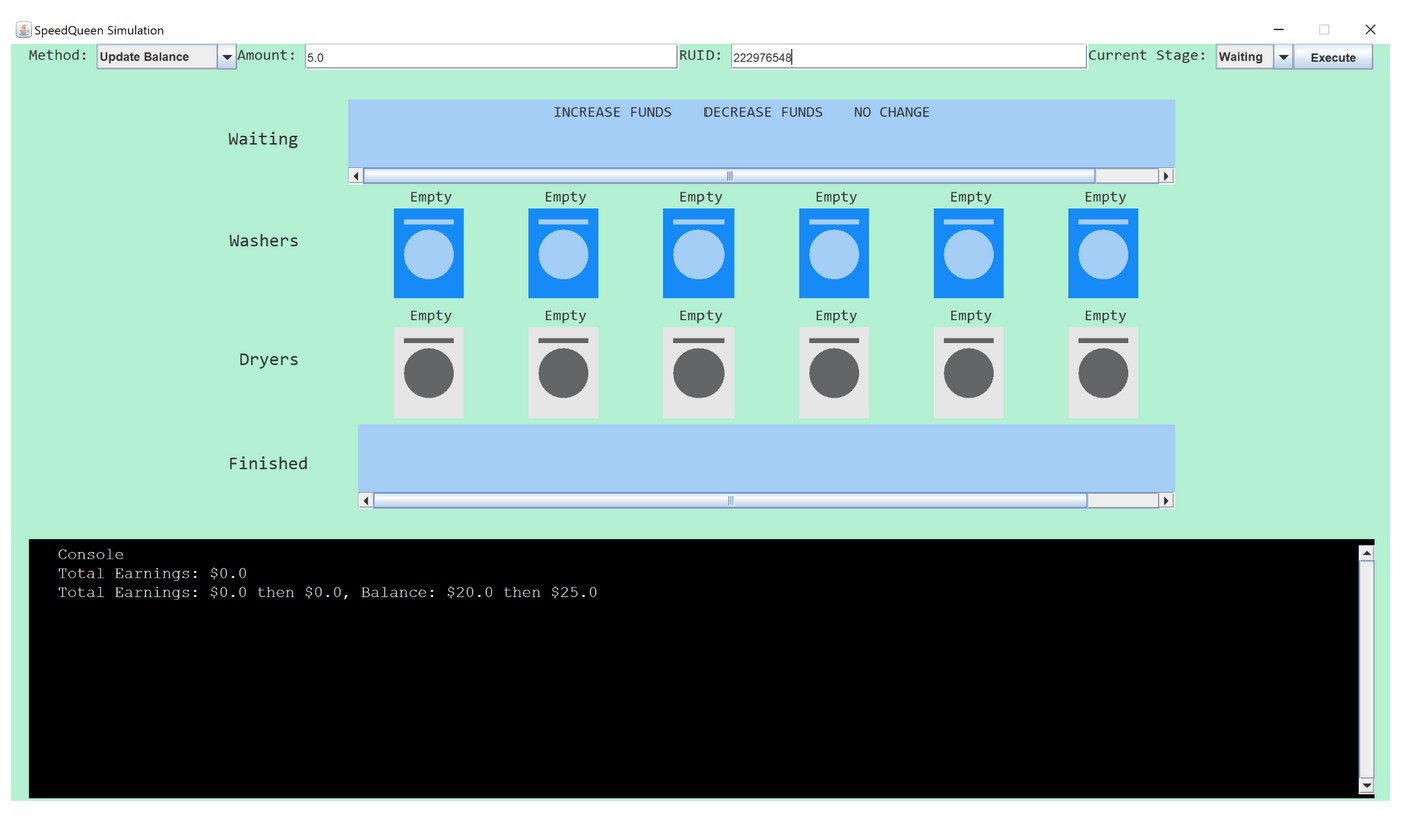
Test Cases:
- Call the method Update Balance with the following criteria:
- RUID = 222976548
- Amount = 5.0
- Current Stage: Waiting
Expected Output in console:
Total Earnings: 0.0 then 0.0, Balance: 20.0 then 25.0
- Call the method Update Balance with the following criteria:
- RUID = 222369587
- Amount = -1.0
- Current Stage: Waiting
Expected Output in console:
Total Earnings: 0.0 then 1.0, Balance: $1.5 then $0.5
IMPORTANT NOTE REGARDING UPDATEBALANCE (04/20)
- We have removed some test cases that were causing errors for students and will be regrading everyone’s submissions.
- Some students who were not before are now passing all the test cases.
- PLEASE CHECK YOUR AUTOLAB SUBMISSIONS to view your most up to date score.
- This change should not have dropped anyone’s grades
findAvailableSpot(Stage stage)
This method finds the first available spot for a Customer to use in the inputted Stage.
Return value:
- integer value representing first available spot of the stage
- If there is an open spot, return the first available index in the array
- If there are no open spots, return -1.
Task:
- Implement 4 different traversal loops, each checking which array the inputted stage corresponds to while using null to find an empty spot.
- If an empty spot is found, return the index of the spot.
- If no available spot was found, return -1 at the end of the method.
Testing:
- Run the Graphical Driver.
- When prompted for File Name type in test2.csv and press the Enter button.
- Select Find Available Spot from the Method: dropdown menu.
- Enter whichever stage you want to check as Current Stage.
- NOTE: as all customers should currently be in waiting, all the other stages should be available. You can test full functionality after moveCustomers() has been implemented.
- Press the Execute button on the right. The console will output whether there is an available spot in the stage you selected, and which index it is at.
You may repeat this process with different customers in the CSV or come back after you implement moveCustomers() correctly so that you can fill up other stages and get different indices as outputs.
Here is what the output should look like for test2.csv after running findAvailableSpot()

moveCustomers(int RUID, Stage currentStage, Stage nextStage)
This method moves a customer from one stage to another, if possible. This method calls findAvailableSpot(), calculateCost(), and updateBalance() to do so.
This method does not return any value.
Task:
- Create a variable of type int that will store the result of findAvailableSpot() to get an available index for the next stage.
- Implement conditional statements that check the status of currentStage
- If currentStage is waiting:
- Traverse waiting with RUID to find the Customer.
- Traversal should be done similarly to previous methods.
- If nextStage is washers:
- Call calculateCost() and updateBalance() to update the customer’s balance.
- Update the Customer’s attributes to indicate they have washed and are now at the washing stage.
- Move the customer from the waiting array to the washers array at the next available spot, making sure to set the customer’s previous spot as empty.
- Else assume nextStage is dryers:
- Call calculateCost() and updateBalance() to update the customer’s balance.
- Update the Customer’s attributes to indicate they have dried and are now at the drying stage.
- Move the customer from the waiting array to the dryers array at the next available spot, making sure to set the customer’s previous spot as empty.
- Traverse waiting with RUID to find the Customer.
- Else If currentStage is washing:
- Traverse washers with RUID to find the Customer.
- If nextStage is waiting (since the simulation sends customers back to waiting if they cannot pay for the next stage) :
- Update the Customer’s attribute to indicate they are now at the waiting stage.
- Move the customer from the washers array to the waiting array at the next available spot, making sure to set the customer’s previous spot as empty.
- Else assume nextStage is dryers:
- Call calculateCost() and updateBalance() to update the customer’s balance.
- Update the Customer’s attributes to indicate they have dried and are now at the drying stage.
- Move the customer from the washers array to the dryers array at the next available spot, making sure to set the customer’s previous spot as empty.
- Else assume currentStage is drying:
- Traverse dryers with RUID to find the Customer.
- Assume nextStage is the finished stage.
- Update the Customer’s attribute to indicate they are now at the finished stage.
- Move the customer from the dryers array to the finished array at the next available spot, making sure to set the customer’s previous spot as empty.
Testing:
- Run the Graphical Driver
- When prompted for File Name type in test2.csv and press the Enter button.
- Select Move Customers from the Method: dropdown menu.
- Enter an RUID from the CSV into the RUID field, select Waiting as Current Stage, and then you may select Washers as Next Stage.
- NOTE: Customers can only move forwards or backwards and are not allowed to skip stages during movement. If you try this, an error message will pop up.
- This method moves customers regardless of attributes. We do checks to make the game run correctly in the driver so you do not have to.
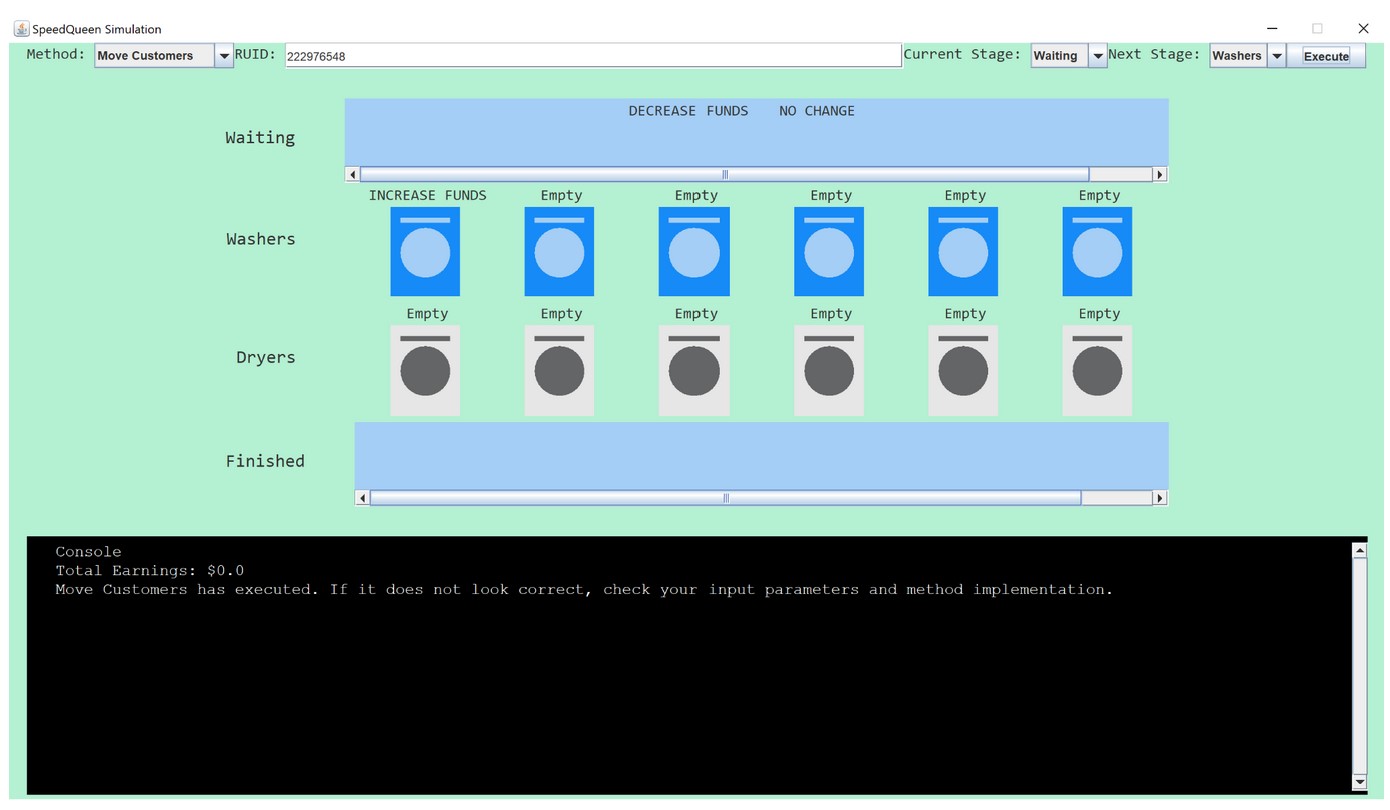
- Press the Execute button on the right. The console will output that the method executed, and you should check the visual to see if it looks correct.
You may repeat this process with different customers in the CSV or use a different CSV. Keep in mind the rules of movement and that the functionality of this method simply moves customers regardless of their attributes.
Test Cases:
Call the method Move Customers with the following criteria:
- RUID = 222976548
- Current Stage: Waiting
- Next Stage: Washers
Expected Output:
Methods given to you: DO NOT ALTER
In SpeedQueen.java – getTotalBalance(int RUID)
This method has been provided for testing purposes. It takes in an RUID parameter to traverse through the four arrays (waiting, washer, dryer, and finished) and returns the current balance of that customer.
In GraphicalDriver.java – nextTurn()
This method simulates customer movement between waiting, washers, dryers, and finished arrays. It will return true if Customers still need to be moved, and return false otherwise.
First turn: The method checks the customer’s current stage and funds. Those with insufficient funds will remain in waiting as they can not afford to move onto the next stage. Those with partial or sufficient funds will move onto the next stage.
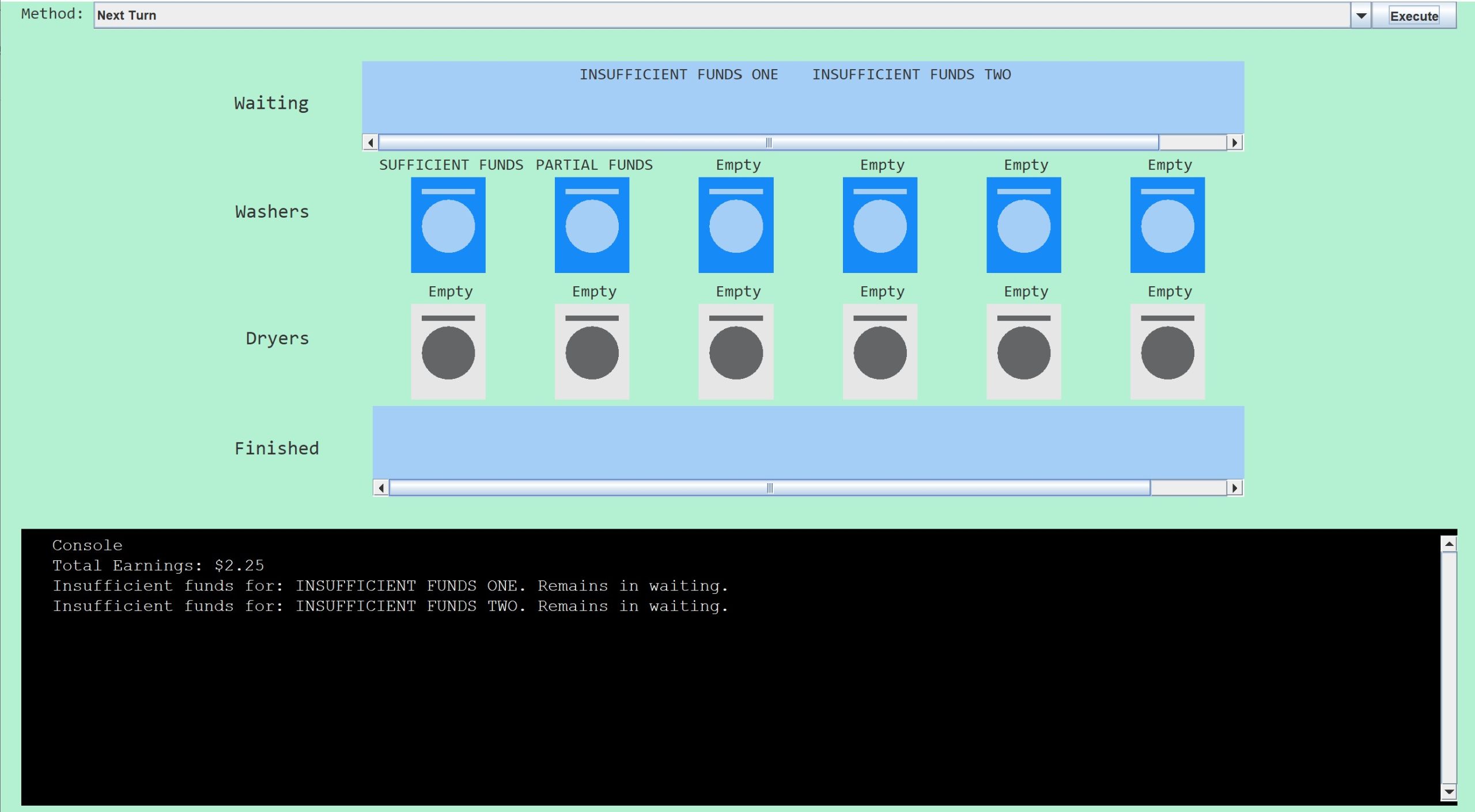
Second Turn: Again, the method checks the current location and funds for each customer. Those with partial funds in the washer will be moved back to waiting as they cannot move onto dryers. Customers with sufficient funds will move onto Dryers.

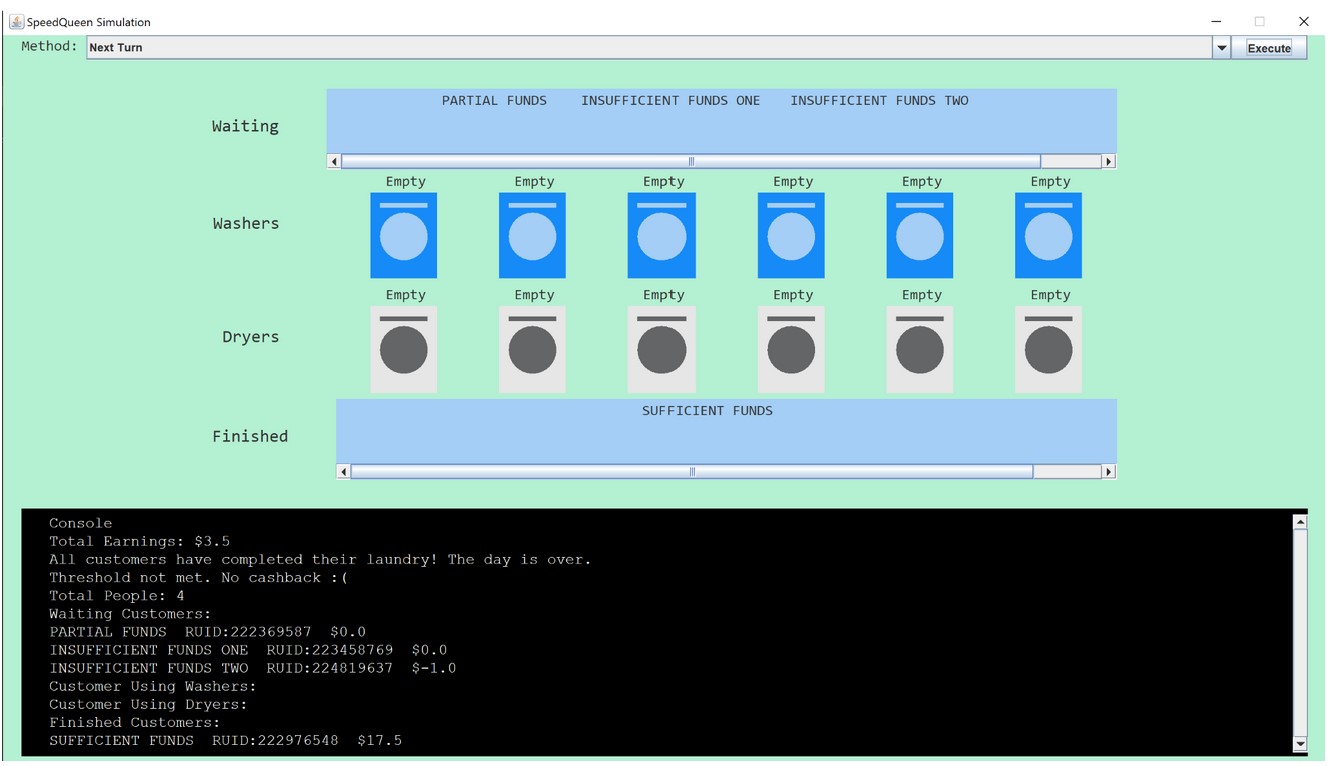
Third turn: In this turn, the customer with sufficient funds will then proceed into the finished array as they have gone through all of the stages.

Final turn: The method checks the position and funds of every customer. No customers are allowed to move and the method returns.
Implementation Notes
- YOU MAY only update the methods with the WRITE YOUR CODE HERE line.
- COMMENT all print statements you have written from SpeedQueen.java
- DO NOT add any instance variables to the SpeedQueen.java class.
- DO NOT add any public methods to the SpeedQueen.java class.
- DO NOT add/rename the project or package statements.
- DO NOT change the SpeedQueen.java class name.
- YOU MAY add private methods to the SpeedQueen.java class.
- YOU MAY use any of the libraries provided in the zip file.
- DO NOT use System.exit()
VSCode Extensions
You can install VSCode extension packs for Java. Take a look at this tutorial . We suggest:
Importing VSCode Project
- Download SpeedQueen.zip from Autolab Attachments.
- Unzip the file by double clicking.
- Open VSCode
- Import the folder to a workspace through File > Open Folder
Executing and Debugging
-
- You can run your program through VSCode or you can use the Terminal to compile and execute. We suggest running through VSCode because it will give you the option to debug.
- How to debug your code
- If you choose the Terminal:
- first navigate to SpeedQueen directory/folder
-
- to compile: javac *.java
- to execute: java GraphicalDriver
or press the play button on the GraphicalDriver file
-
Before submission
Collaboration policy. Read our collaboration policy here.
Submitting the assignment. Submit SpeedQueen.java separately via the web submission system called Autolab. To do this, click the Assignments link from the course website; click the Submit link for that assignment. Don’t forget to submit the Google Form reflection found on the website!
Getting help
If anything is unclear, don’t hesitate to drop by office hours or post a question on Piazza.
- Find instructors office hours here
- Find tutors office hours on Canvas -> Tutoring
- Find lead TAs office hours here
- In addition to office hours we have the CSL (Coding and Social Lounge), a community space staffed with lab assistants which are undergraduate students further along the CS major to answer questions.
By Alexandra Domanski, Isha Gajera, and Vishal Saravanan
